
Tracking Settings — configure how data is collected
The WPMC Tracking Settings page lets you control what is tracked, exclude internal traffic, and fine-tune the engine that sends events. Everything happens inside WordPress, with privacy and performance in mind.
🟠 Clicks Tracker (BH)
Enable Clicks Tracker — the main switch. When ON, front-end events are recorded: clicks, navigation, CTAs, and page views for heatmaps and statistics. When OFF, no data is collected and no requests are sent.
- When to enable: after your first setup, or before a test/campaign.
- When to disable: during maintenance or if you need a clean baseline.
🧩 Tracked Post Types
The Tracked Post Types section lets you decide which kinds of content should be monitored by the WPMC Behavior & Heatmap tracker. You’re not limited to posts and pages — you can enable tracking for any Custom Post Type (CPT) registered in your WordPress site.
This means you can collect clicks, views, and heatmap data from:
- Standard content — Posts and Pages.
- Custom content created by your plugins or themes — such as Products, Projects, Reviews, Portfolio items, Docs, or anything else.
When a new custom post type is registered, it automatically appears in this list — just toggle it on to start collecting analytics instantly.
🚫 Excluded IPs
Prevent tracking from specific IP addresses (comma-separated). Use this to exclude your team, office, or staging server so internal clicks don’t pollute analytics.
- Your current IP is shown under the field for quick copy-paste.
- Tip: Add multiple IPs if your office uses static addresses; for dynamic IPs consider a VPN range.
🛠️ BH Engine Settings
Fine-tune batching, delays, and compression for the Clicks Tracker to balance accuracy and performance.
- Batch size (events per request)
- How many events are sent together. Larger batches reduce network overhead; smaller batches deliver data sooner. Recommended:
30for typical sites; lower to10–20if you need near-real-time charts. - Max delay (ms)
- The maximum buffering time before a batch is sent. Keeps data timely even when batch size isn’t reached. Recommended:
800–1500 ms. Lower values = faster updates, higher = fewer requests. - Compress (gzip)
- Enables gzip when supported by the browser/server. Reduces payload size and speeds up transfers. Recommended: enabled.
- Bucket size (px)
- Heatmap “bin” size (pixel grid). Smaller buckets = finer detail but heavier data; larger = smoother maps. Recommended:
6–8 pxfor desktop-focused sites;10–12 pxfor high-traffic or mobile-heavy sites.
✅ Best-practice presets
- General sites: Batch
30, Delay1200 ms, Gzip on, Bucket6–8 px. - Low traffic / need faster updates: Batch
15–20, Delay600–900 ms. - Very high traffic: Batch
40–60, Delay1200–1800 ms, Bucket10–12 px.
🔒 Privacy & performance
- No third-party scripts or cookies; data stays on your server.
- Batching and gzip keep network usage minimal.
- IP exclusion prevents internal activity from skewing metrics.
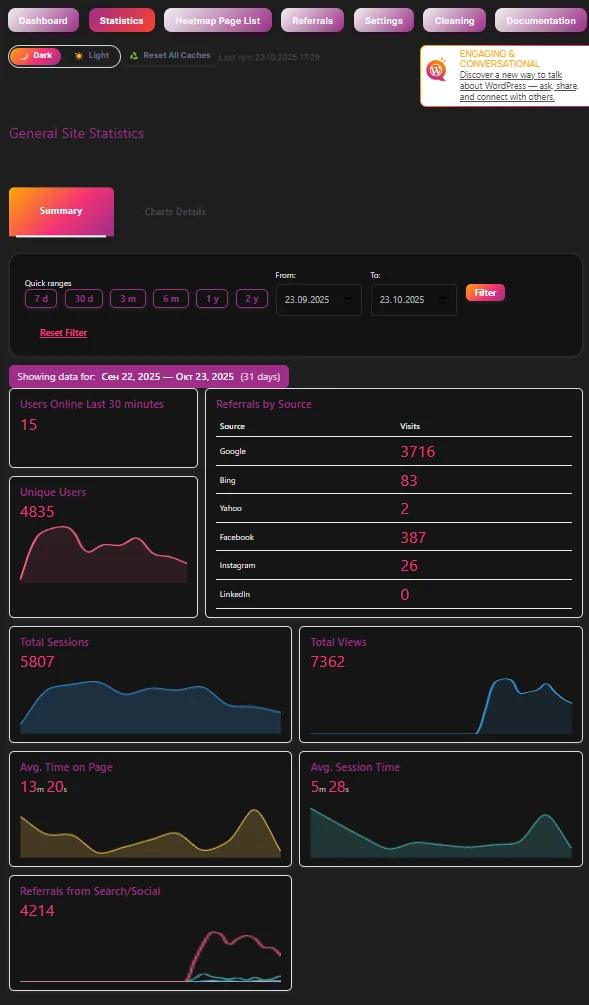
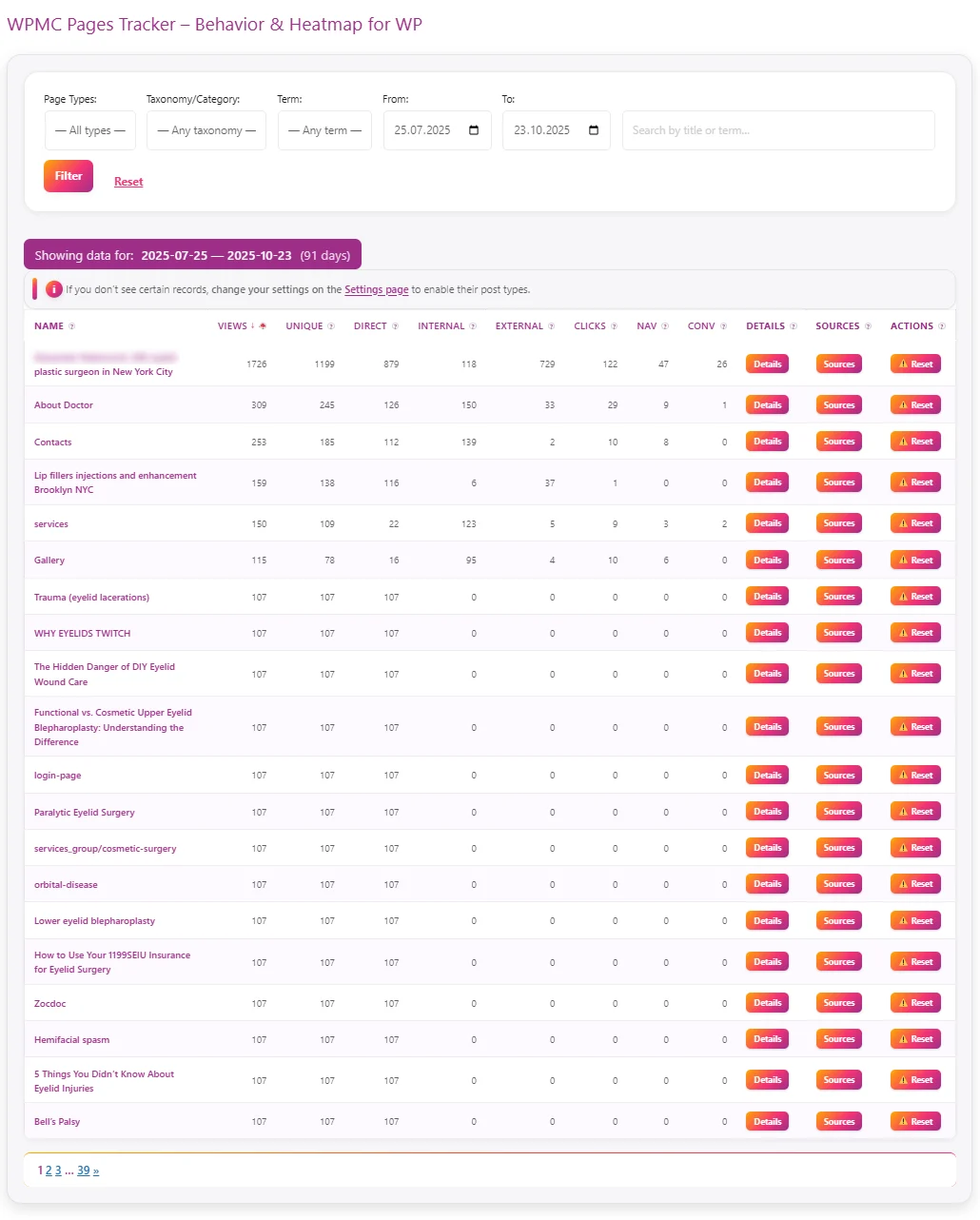
Dark & Light Theme – comfort for your eyes and workflow

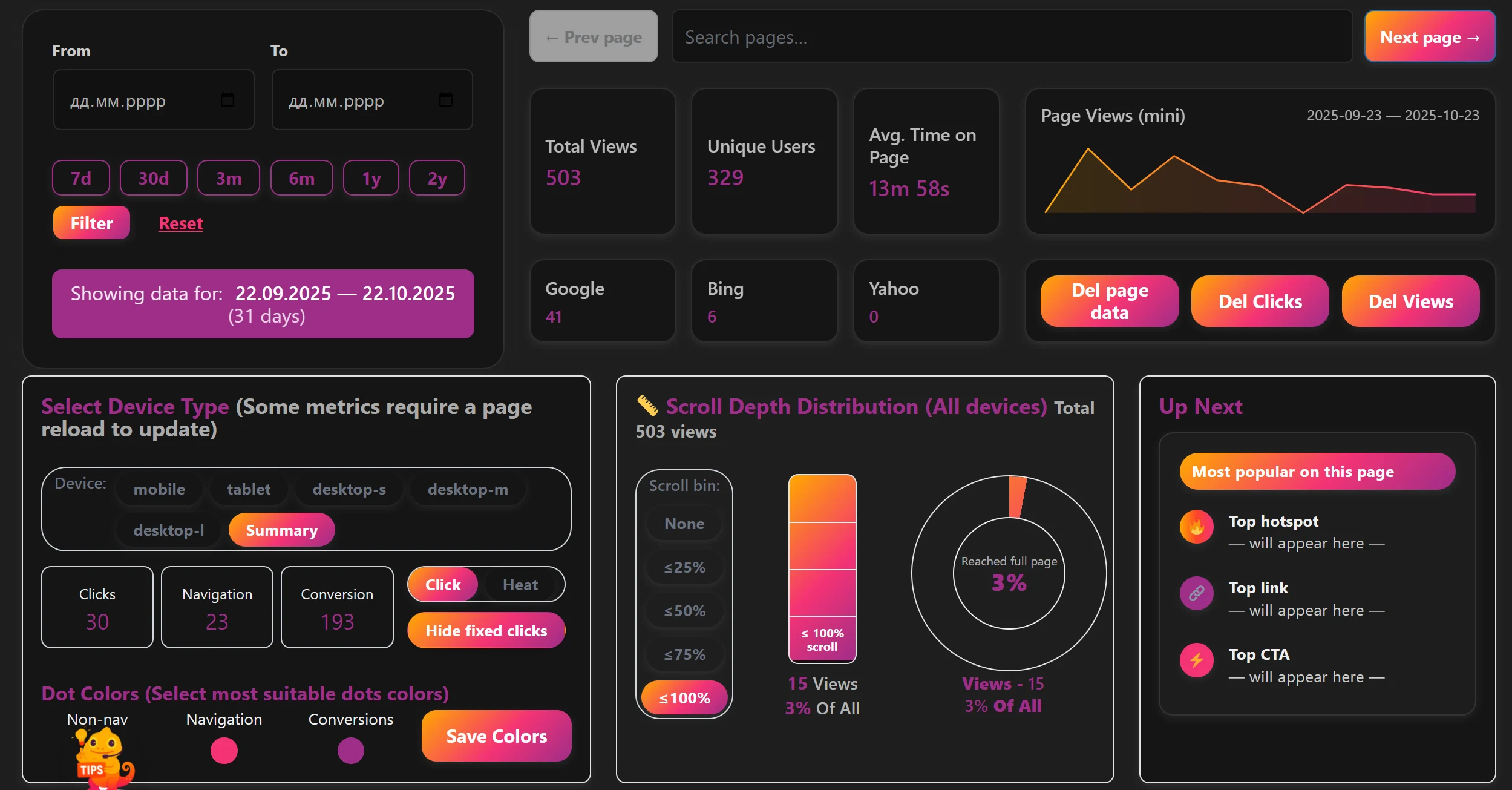
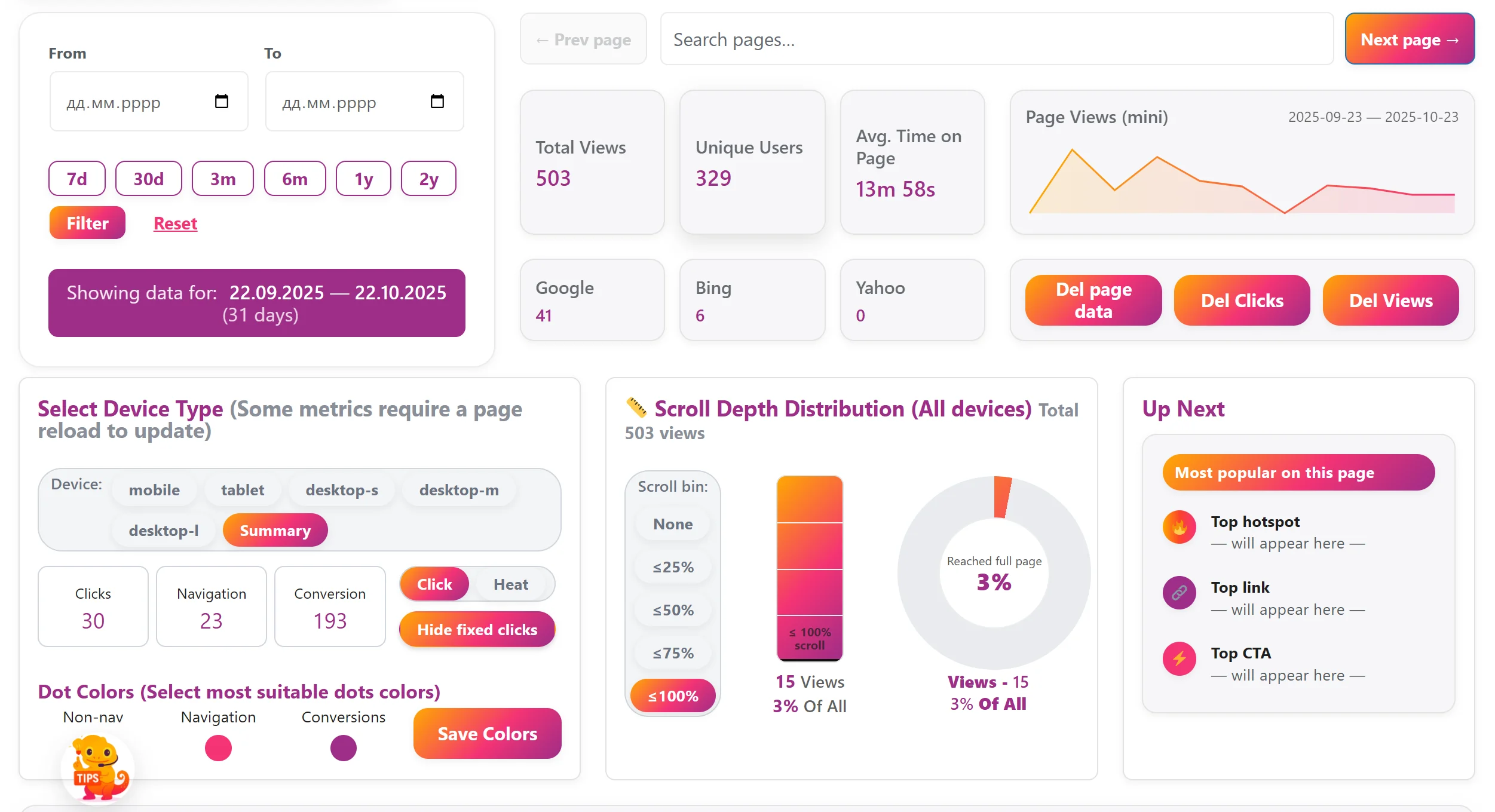
We know how important it is to feel comfortable while you work. That’s why WPMC Behavior & Heatmap supports both Dark and Light themes. Whether you’re analyzing user clicks late at night or checking your site’s behavior during the day — you can choose the look that fits your environment. T…
♻️ Reset All Caches – clean start in one click

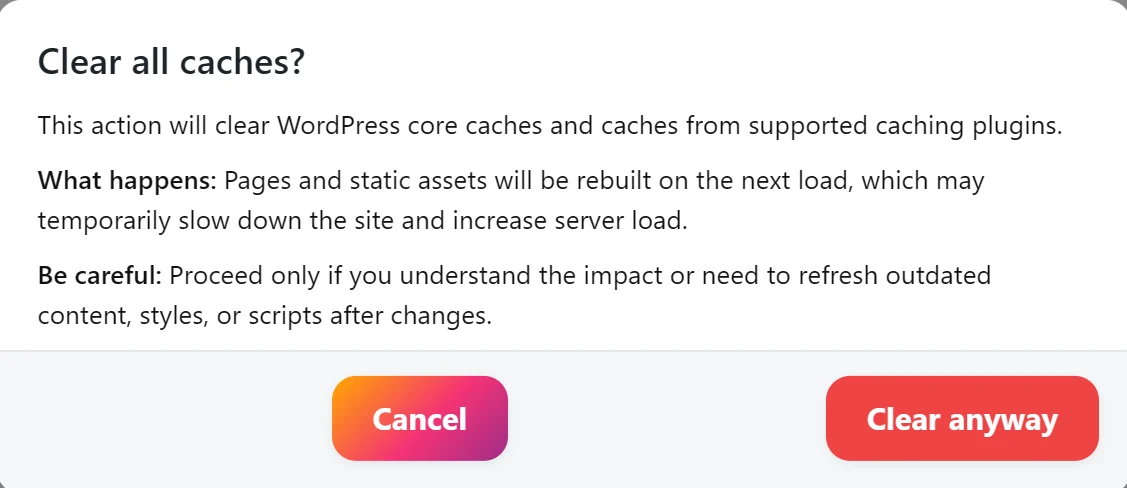
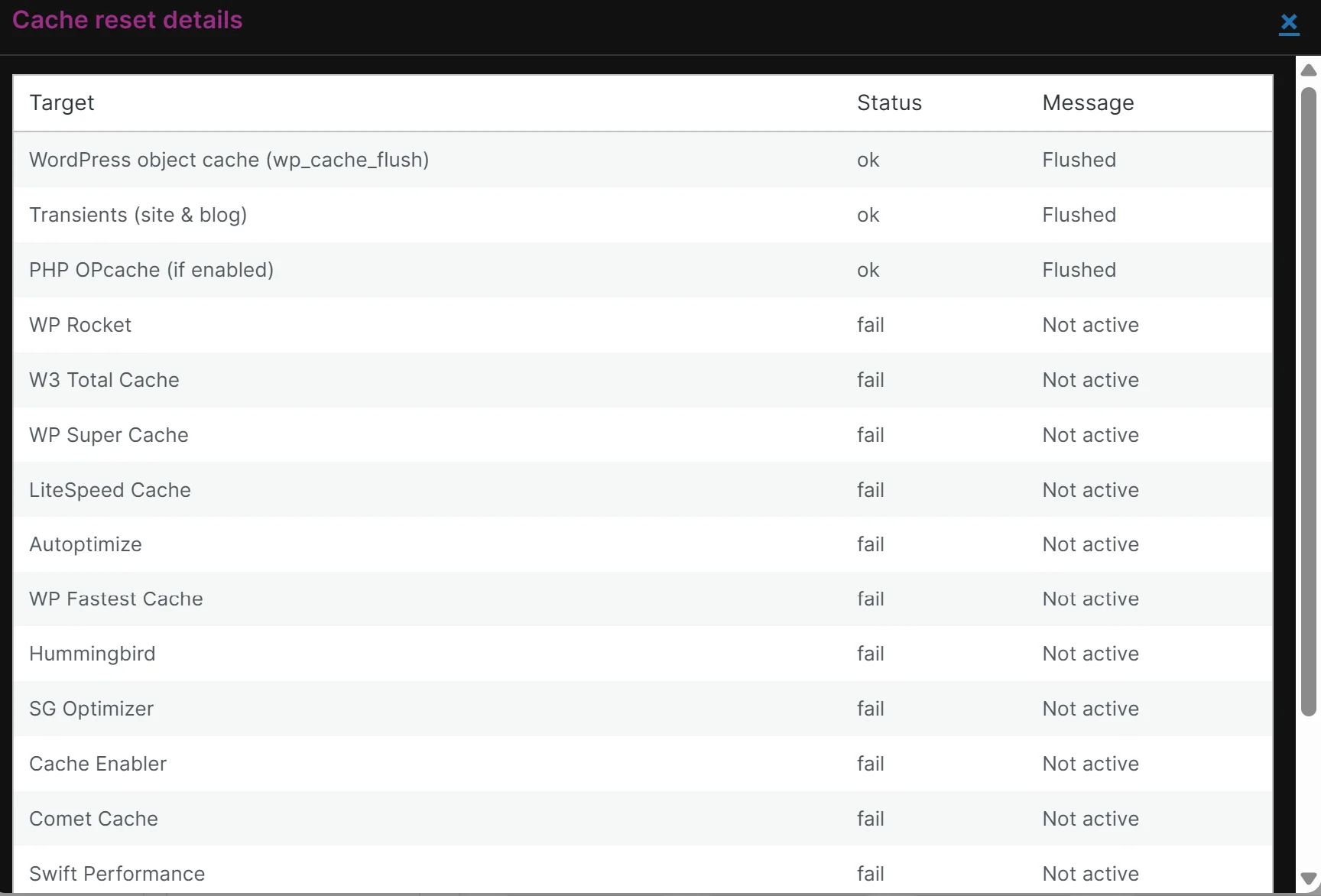
Keeping your data fresh is essential when you analyze user behavior. That’s why WPMC Behavior & Heatmap includes a powerful Reset All Caches button. With just one click, you can instantly clear all major WordPress cache layers — no need to open different plugin settings or server panels. Here’…
Leave a Comment
Comments